Trigger Cloud Service
Emergency Power-off, Reboot, Network deactivation, Temporary network deactivation
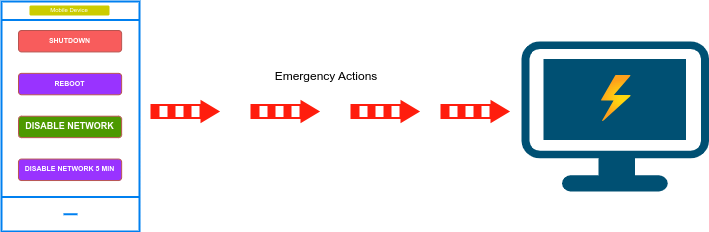
How does it work
You Need: Register on Site, PC you want to control, Any Android Device
Register on Site
After registering on the website, two applications will be available for download: the Trigger Mobile Application and the Trigger CS Client.
The Trigger Mobile Application must be downloaded and installed on an Android mobile device. Android versions 7.1 and later are supported.
The Trigger CS Client must be installed on the system you want to control. Supported operating systems include all versions of Windows and Windows Server, Linux x86_64, Linux x32, macOS, and BSD-like systems.
PC you want to control
Simply download the appropriate version of the software for your specific operating system platform and save the executable file into a dedicated, secure directory of your choice.
Next, carefully adjust a few basic configuration settings as outlined in the provided step-by-step setup instructions.
Finally, to ensure proper system functionality, launch the application with full administrator or root privileges.
Any Android Device
A single file identifies the device—just add this file in the settings to take control of its operation.
Simply copy the file to your mobile device, and your Android will instantly be able to manage your computer, server, virtual machine, or single-board computer.
You will be able to Shut Down or Reboot the device, Disable network access (either permanently or temporarily), and execute any custom command on the remote device. For example: create a backup, lock out all users, or turn an LLM model on or off.
Install guides for the Trigger Client
Pick your operating system to get the step-by-step setup instructions.